
The setup guide
Your library.
Your screens.
Ready for movie night.
Connect Plex on Android or Windows. Android TV users can also configure optional cinema lights. No Minova account is needed.
Android 4.0.5 · Windows 1.1.0
Connect your Plex server.
You'll need a running Plex Media Server with your libraries already added and Minova Cinema on your Android device or Windows PC. For a local server, keep the playback device and server on the same trusted home network.
Find the server's local IP address
Look for the computer or NAS running Plex in your router's connected-device list, or check that device's network settings. Use the server's address—not the phone, TV, or PC playback device's address.
Keep the server powered on and awake while you watch.
Check that Plex opens on your home network
On a phone or computer connected to the same network, open
http://YOUR-SERVER-IP:32400/web, replacingYOUR-SERVER-IPwith the address you found. Sign in and check that your library appears.The usual Plex port is
32400. If your installation uses a different port, use that instead. See Plex's official server setup guide.Find your X-Plex-Token
In Plex Web, sign in to the account that can access your server. Open a movie or episode from your own library, open its media information menu, and choose View XML. Depending on the Plex Web version, the information menu may be called Get Info or Media Info.
In the new page's address bar, locate
X-Plex-Token=. Copy only the value after the equals sign, stopping before the next&if there is one. Do not copy the whole URL or the wordsX-Plex-Token=.Plex describes this as a temporary token; you may need a fresh one if access expires or is revoked. Follow Plex's official token instructions if the menu differs. Use a token from your own server's media, not Plex's free streaming catalog.
Enter the two values in Minova Cinema
Open the app. On Connect your Plex library, fill in:
- Plex server
http://YOUR-SERVER-IP:32400
Use the base address only, without/web, a media path, or a token. Include the port—for example:32400or:443when your server address requires it.- X-Plex-Token
- The token value you copied. This is not your Plex password, profile PIN, or a claim code.
Select Connect and allow the initial library and artwork to load. Use touch on a phone, the D-pad and OK on a TV, or mouse and keyboard on Windows.
Check a movie, then you're ready
Open a title and press Play. To reconnect later, open the gear icon → Plex server → Change server. Use Refresh library after adding media to Plex.
Install on your Windows PC.
The desktop edition supports 64-bit Windows 10 and 11 and includes its native playback host. It connects to the same Plex server and keeps the Minova look while adapting controls for mouse, keyboard, controller, and fullscreen use.
Download the official installer
Use the button below to download the current setup file directly from the official Minova Windows release. Keep the complete
.exefile until the download finishes.Run setup
Open the installer and follow the Windows prompts. If Windows asks for confirmation, check that the file came from the official Minova GitHub release before continuing.
Connect your Plex library
Launch Minova Cinema, enter the same base server address and X-Plex-Token described above, then select Connect. The token is protected with Windows user encryption and is not exposed to the desktop renderer.
Let the desktop app update itself
After installation, the Windows edition checks the official release channel for updates. You can also return to the downloads page for the newest installer and release notes.
Choose your Tapo lights.
Cinema lighting is available on Android TV only; it is intentionally absent from the phone, tablet, and Windows interfaces. Minova controls compatible Tapo bulbs directly on your home network. Device firmware and local-access settings affect compatibility.
Set up the bulbs in the Tapo app first
Add each bulb to your TP-Link account using the official Tapo phone app. Give it a recognizable name, such as “Sofa lamp,” and check that you can turn it on and adjust its brightness there. Leave the wall switch on so the bulb stays reachable.
The Tapo L630 GU10 uses 2.4 GHz Wi-Fi. Your TV can use Ethernet or 5 GHz, provided your router lets those devices communicate on the same local network. Avoid guest networks or isolated IoT networks for this setup.
Check Third-Party Compatibility
In the Tapo phone app, open Me → Third-Party Services → Third-Party Compatibility. The Me page may be accessed from your profile picture. Where this option is available, review TP-Link's warning and enable it only if you accept the security trade-off.
This is especially worth checking when an L630 is visible but rejects local control. TP-Link warns that the setting can reduce device security and does not guarantee compatibility. Read TP-Link's explanation before enabling it. Menu availability varies by app and firmware version.
Connect Tapo inside Minova Cinema
On the TV, open the gear icon → Cinema lights. Move to TP-LINK TAPO · LOCAL CINEMA LIGHTS and select Connect Tapo.
Enter your Tapo email and Tapo password, matching the account used in the Tapo app, including capitalization. This is your TP-Link login, not your Wi-Fi password. Select Save and scan.
The login is encrypted in the app's private storage on the TV and used for local device authentication. A saved login alone does not mean a bulb has successfully connected.
Select only the lights in your Cinema Room
Wait for scanning to finish. The list shows each reachable compatible light's friendly name, model, and IP address. Use D-pad Up/Down to browse; press OK on a light to check or uncheck it. Only check the lights you want affected during playback.
Selections save automatically. Choose Done when finished. Later, use Configure Tapo lights and Scan for lights to refresh the list. Minova's Cinema Room selection is separate from any room or group in the Tapo app.
Enable Cinema Mode and test one movie
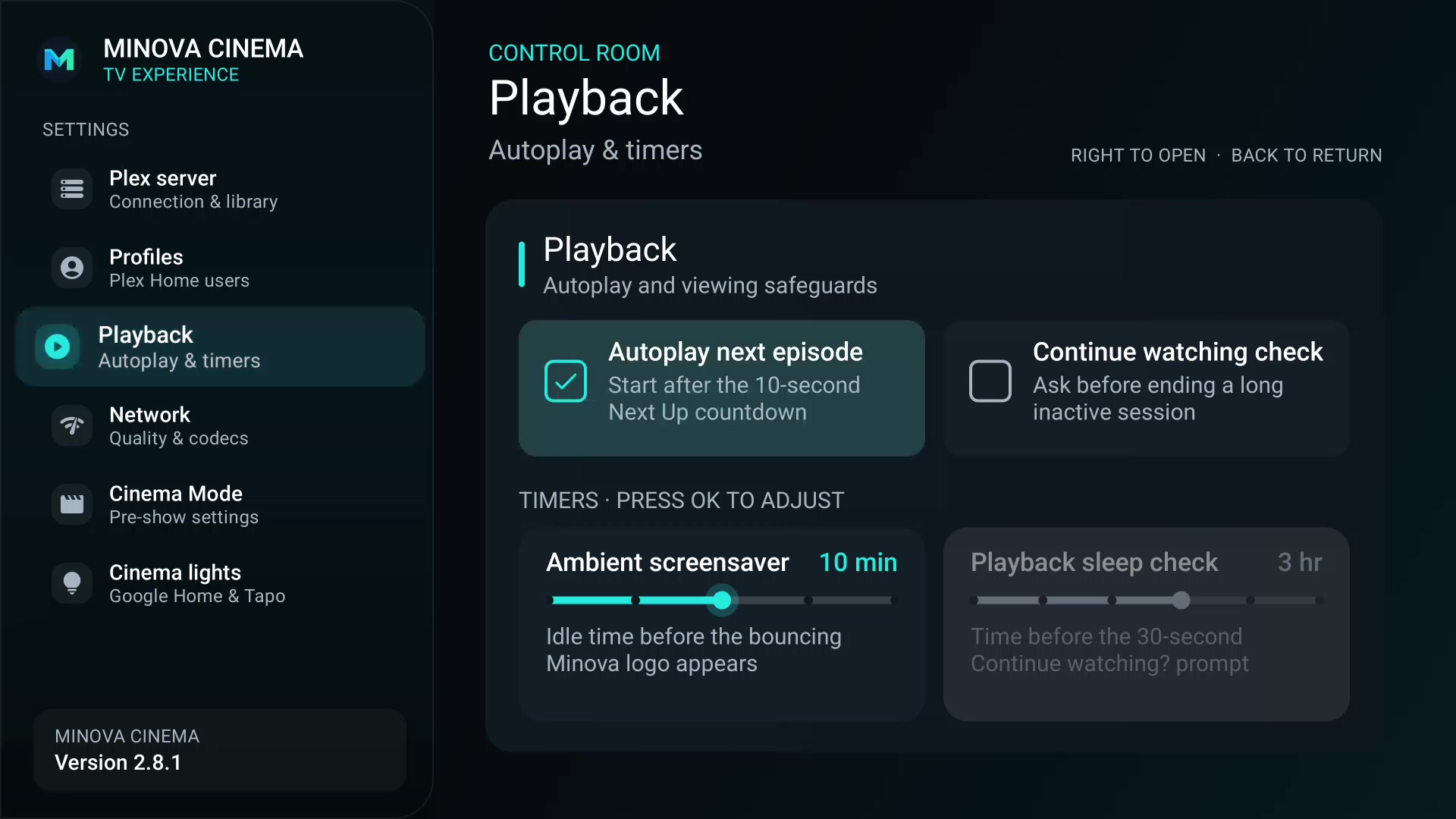
Open Settings → Cinema Mode and turn on Cinema Mode. You can leave Play trailers off and leave the local bumper unselected if you only want the lighting effect.
Turn your selected bulbs on at a comfortable brightness, then start a movie. Minova attempts a roughly four-second fade to off. Pause or exit playback and allow about 1.5 seconds for the previously lit bulbs to return to their saved brightness. Network and bulb response times can change the pace.
Bulbs that were already off are left off. Keep an unselected light available if you need safe lighting in the room.
Not connected yet?
Plex won't connect or the connection times out
First test the server's /web address from another device on the same network. Check the server is awake, Plex is running, and the address includes the correct port. localhost or 127.0.0.1 refers to the device running Minova, so use it only when Plex runs on that same Windows PC. Check firewall rules without disabling the firewall. A VPN or guest-network isolation can also prevent the connection.
Plex reports unauthorized, or a working login stopped working
Recheck the token for missing characters, spaces, or an accidentally copied URL. Get a fresh token while signed into an account with access to that server, then use Settings → Plex server → Change server. Revoked or temporary tokens can stop working; reinstalling the app isn't necessary.
Plex connects, but the library is empty
Check that the same account can see those libraries in Plex Web. Confirm the server has completed its library scan, then use Refresh library in Minova. A different or restricted Plex profile may have access to fewer libraries.
Tapo shows “Connected” but no lights—or only one
“Connected” means Minova has saved a Tapo login. Bulbs must still be discovered and authenticated individually. Wait until scanning finishes and check the compatible-light count. If several are listed, use D-pad Down to scroll through them. If the count is one, scrolling won't reveal the missing bulbs: check their power, account, network, and compatibility settings, then scan again.
My L630 is on 2.4 GHz but still won't appear
Try the Tapo Third-Party Compatibility quick fix above, then scan for lights again. The Wi-Fi band alone doesn't establish local access. Confirm the same TP-Link account owns the bulb and review guest-network, client-isolation, or IoT-network rules. A bulb working through Tapo's cloud does not prove that the TV can reach it locally. Minova tries both modern KLAP and legacy local authentication automatically; there is no protocol switch to choose.
“Local access is disabled” or a 403 error appears
Follow the Tapo app → Me → Third-Party Services → Third-Party Compatibility steps above, review TP-Link's warning, and enable the setting if you accept the trade-off. Re-enter the correct Tapo login if needed and choose Scan for lights again. A 403 can have more than one cause; if it persists, report the bulb model, hardware/firmware version, app version, and the exact error without including credentials.
The bulbs appear, but nothing dims
Check at least one bulb in the Cinema Room list, enable Cinema Mode, and start a movie. For a visible test, that bulb must already be on. If its IP address changed, rescan and select the new entry. A DHCP reservation in your router can keep the bulb's address stable. If lights flicker or change unexpectedly, check for competing Tapo schedules or other lighting automations.
Do I need Google Home or to open ports on my router?
No Google Home connection is needed for Minova's Tapo path. Do not forward bulb-control ports to the internet. On advanced networks, local discovery uses UDP 20002 and control uses the local HTTP/HTTPS endpoint advertised by the bulb. Ask the network administrator about device-to-device access rather than opening broad firewall rules.
Still stuck?
Tell us your Minova version, device or PC model, operating system, and the exact message. For Tapo, include the bulb model and firmware version. Remove tokens, passwords, personal account details, and private addresses from any screenshots.
Send setup feedbackHow your data is handled